

General Assembly & Voting
The General Assembly module lets you schedule assemblies, notify shareholders, and collect votes — all within the Issuer Portal. This guide walks you through every step, from creating an event to tracking results.
Creating an Event
Section titled “Creating an Event”Navigate to Corporate Actions → General Assembly in the sidebar and click + Create Event.
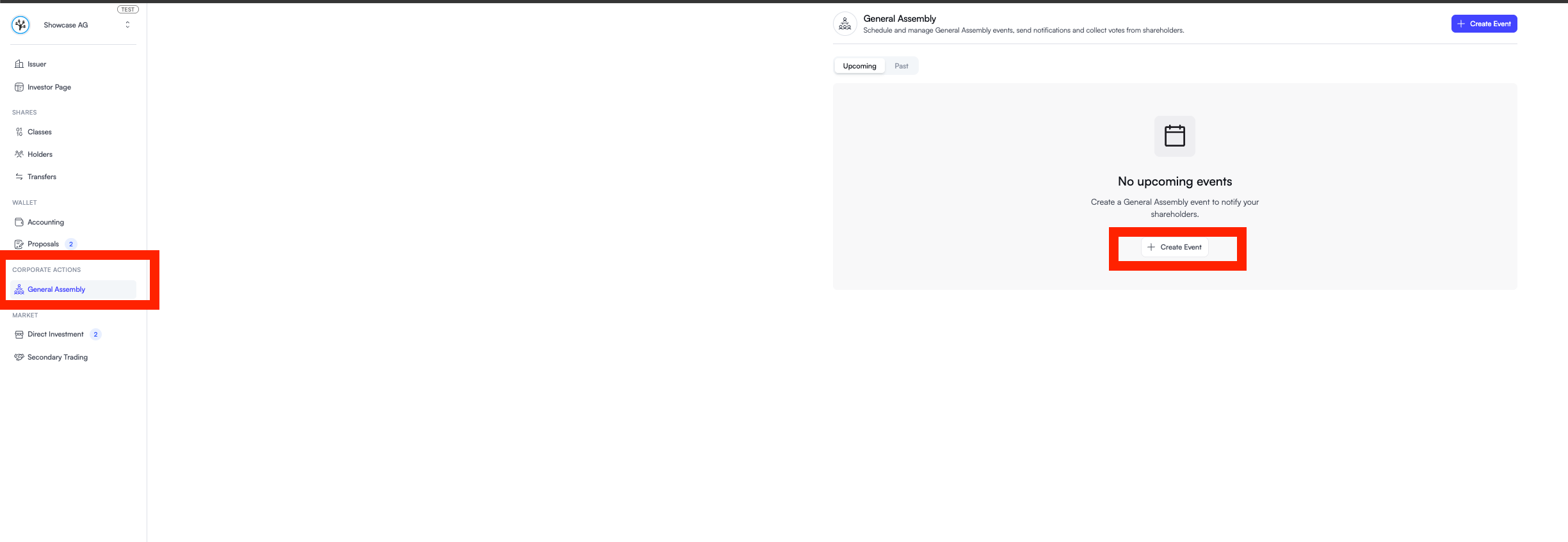
Fill in the required fields:
| Field | Description |
|---|---|
| Event Name | A clear name shareholders will see, e.g. “General Assembly 2026” |
| Date & Time | When the assembly takes place |
| Description | Outline the agenda and purpose of the meeting |
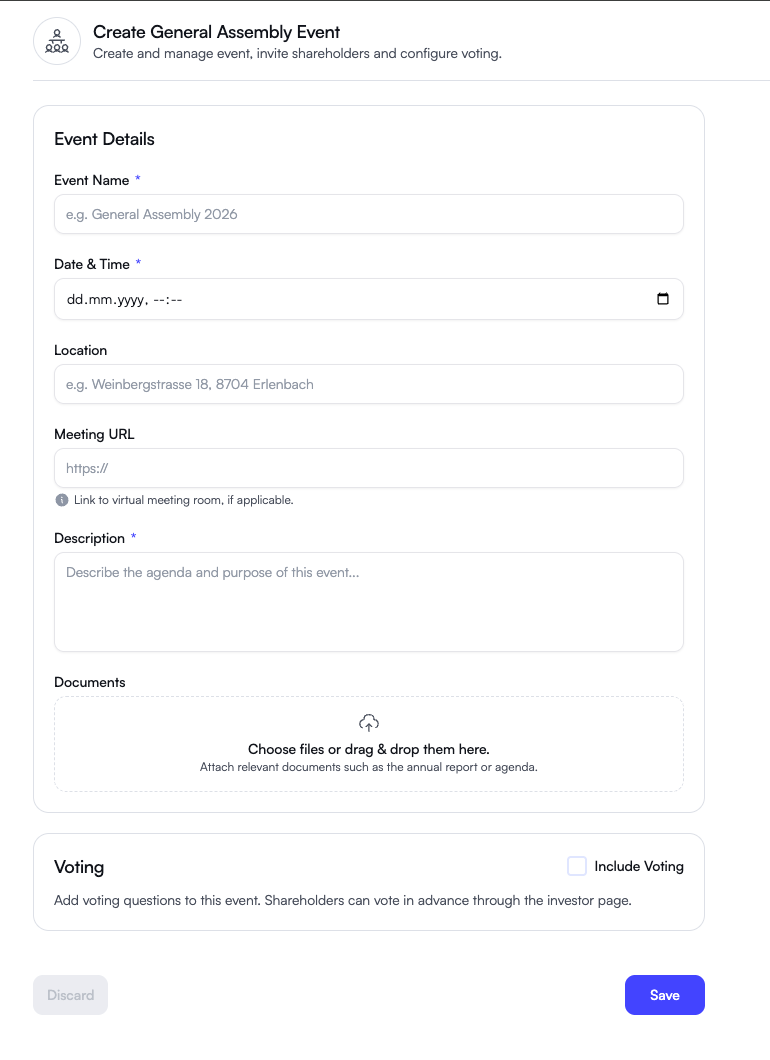
Optionally, you can also add:
- Location — physical address for in-person attendance
- Meeting URL — link for virtual or hybrid attendance
- Documents — attach supporting files such as the annual report or agenda
Adding Voting
Section titled “Adding Voting”To collect shareholder votes ahead of the assembly, enable Include Voting in the Voting section.
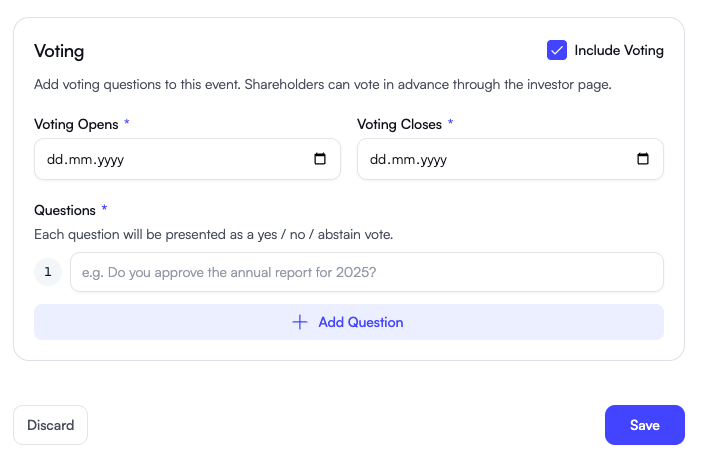
Set the Voting Opens and Voting Closes dates, then add your agenda items as questions. Each question is presented to shareholders as a Yes / No / Abstain vote.
Use + Add Question to add as many items as needed.
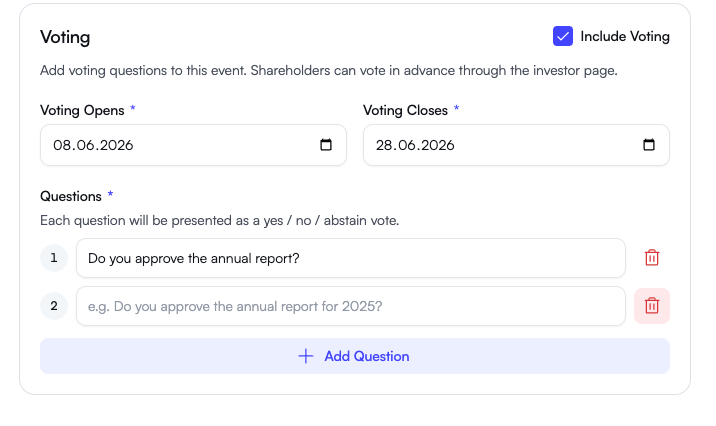
Click Save when done. The event is saved as a draft and can be reviewed before publishing.
Publishing and Inviting Shareholders
Section titled “Publishing and Inviting Shareholders”Once you’re satisfied with the event details, go to the Invitation section on the event page.
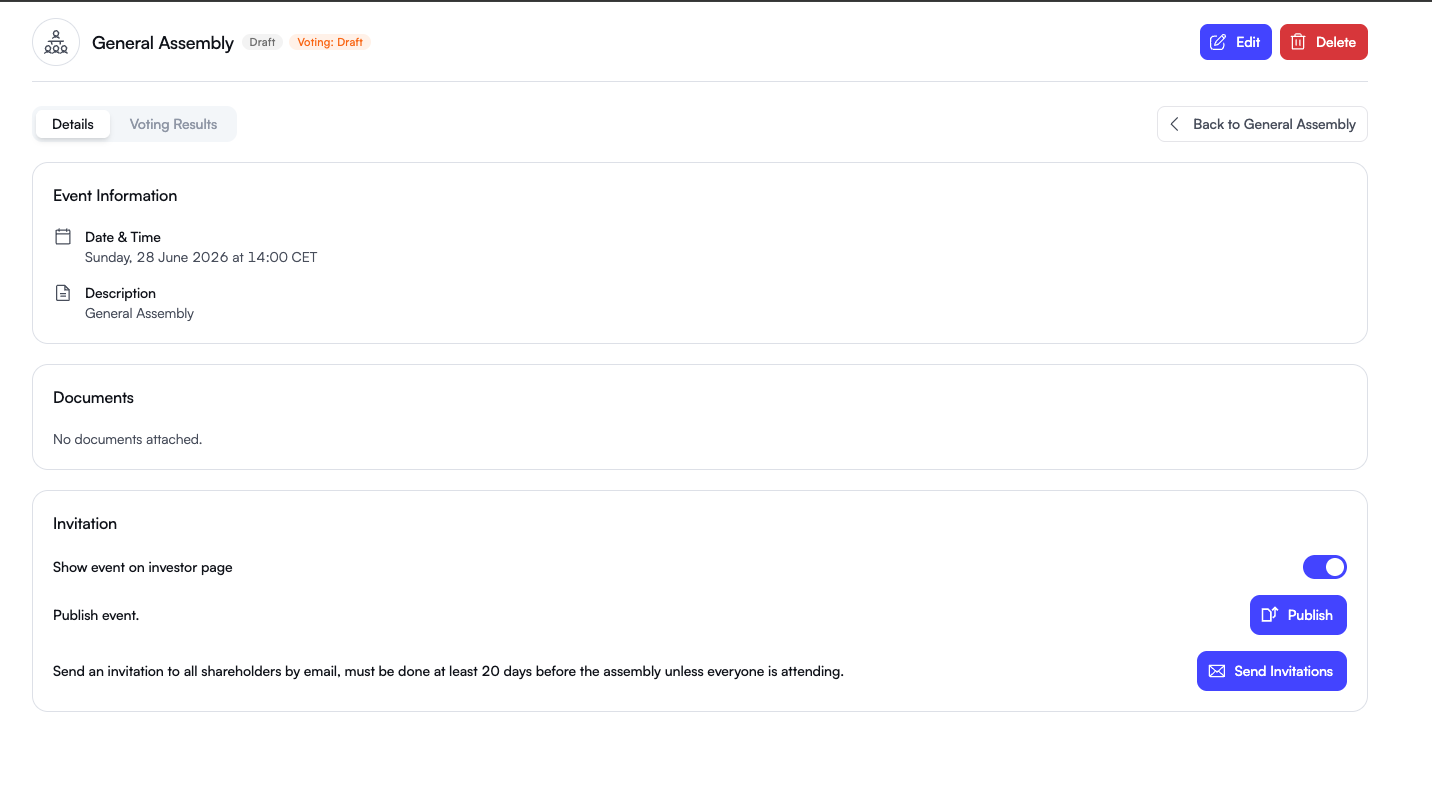
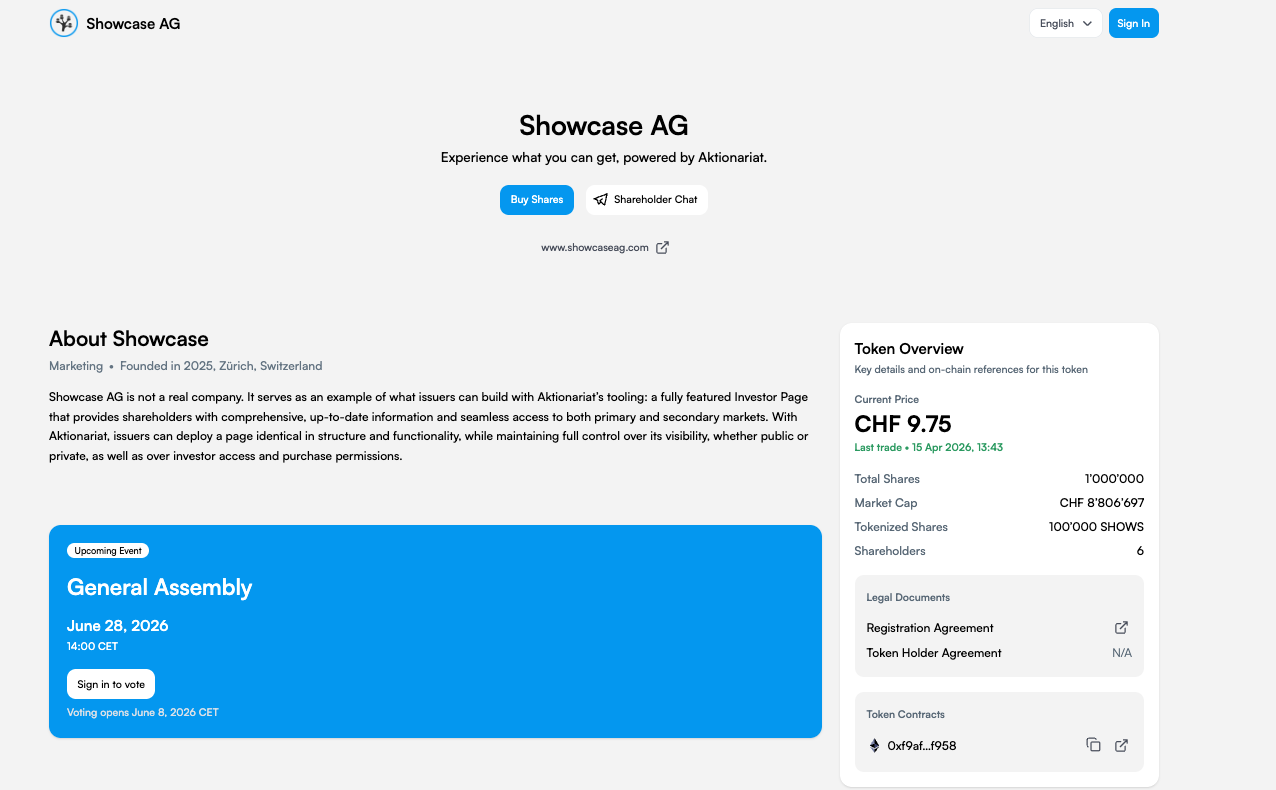
Show event on investor page — toggle this on to make the event visible on your public Investor Page. Shareholders will see an upcoming event card with the date, time, and a link to vote.
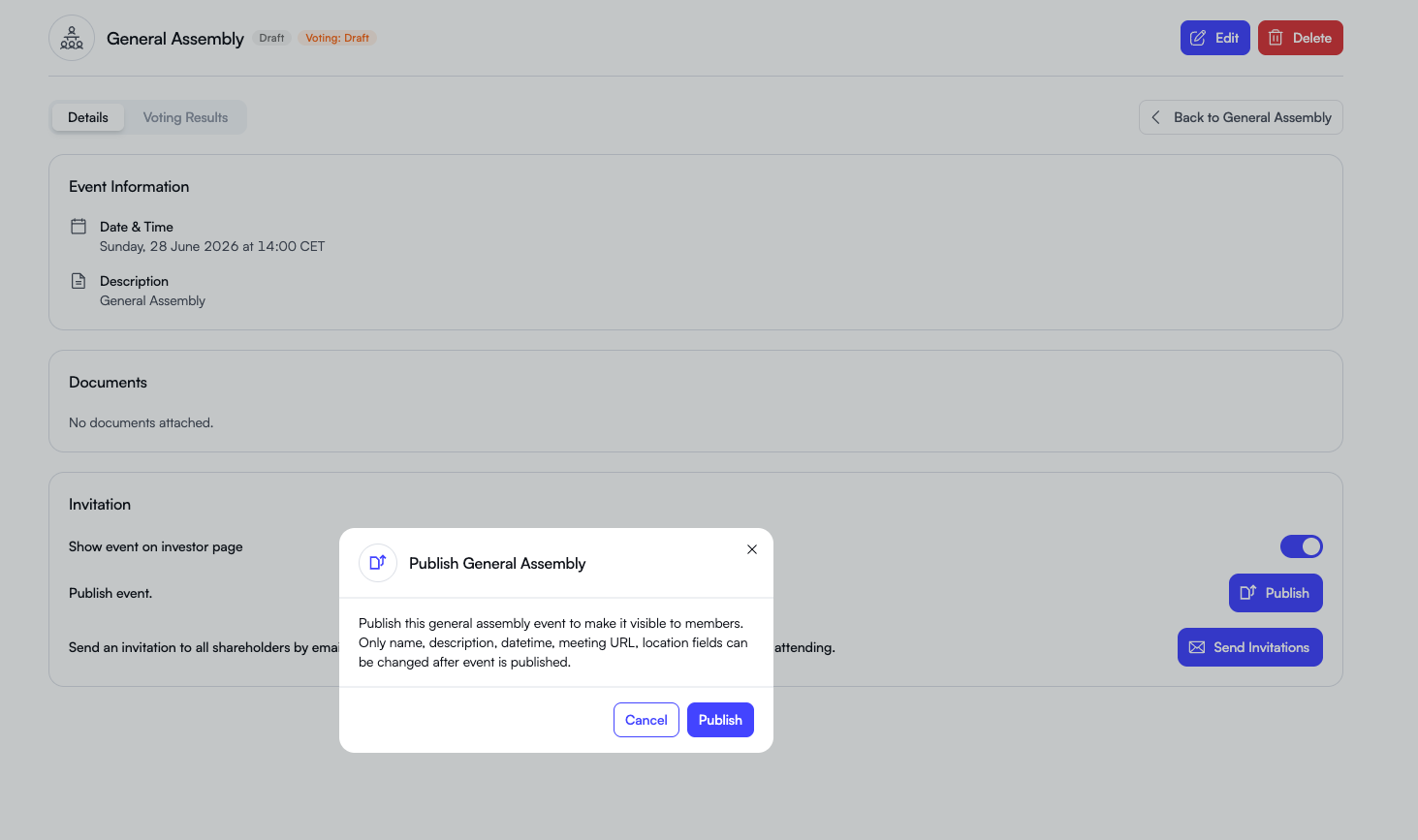
Publish — click Publish and confirm. This makes the event live and visible on your Investor Page.
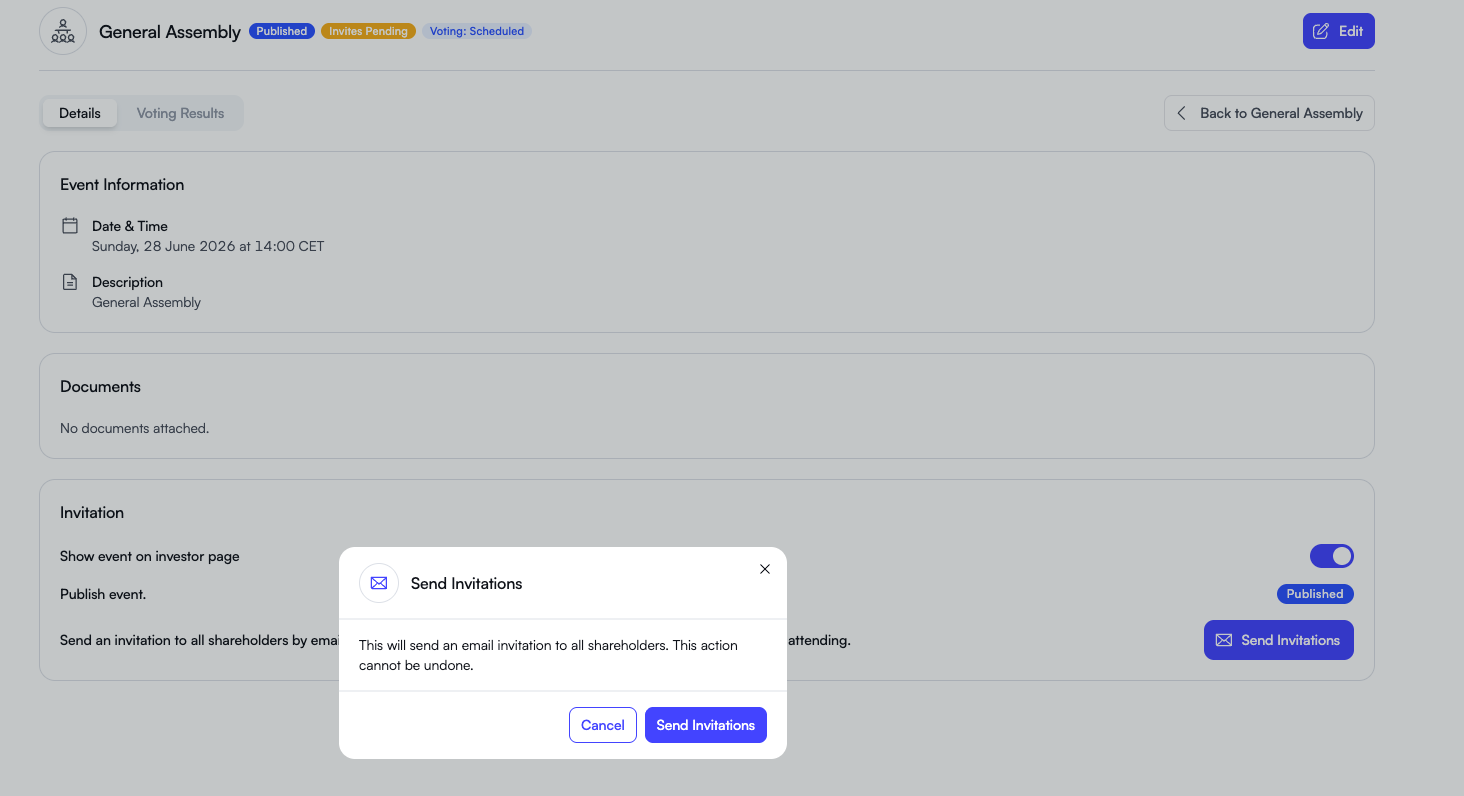
Send Invitations — click Send Invitations to notify all shareholders by email.
Tracking Results
Section titled “Tracking Results”Once voting opens, the Voting Results tab becomes active. It shows:
- Eligible voters and the total number of shares represented
- Participation rate — how many shareholders have voted so far
- Results by question — a real-time breakdown of Yes, No, and Abstain votes
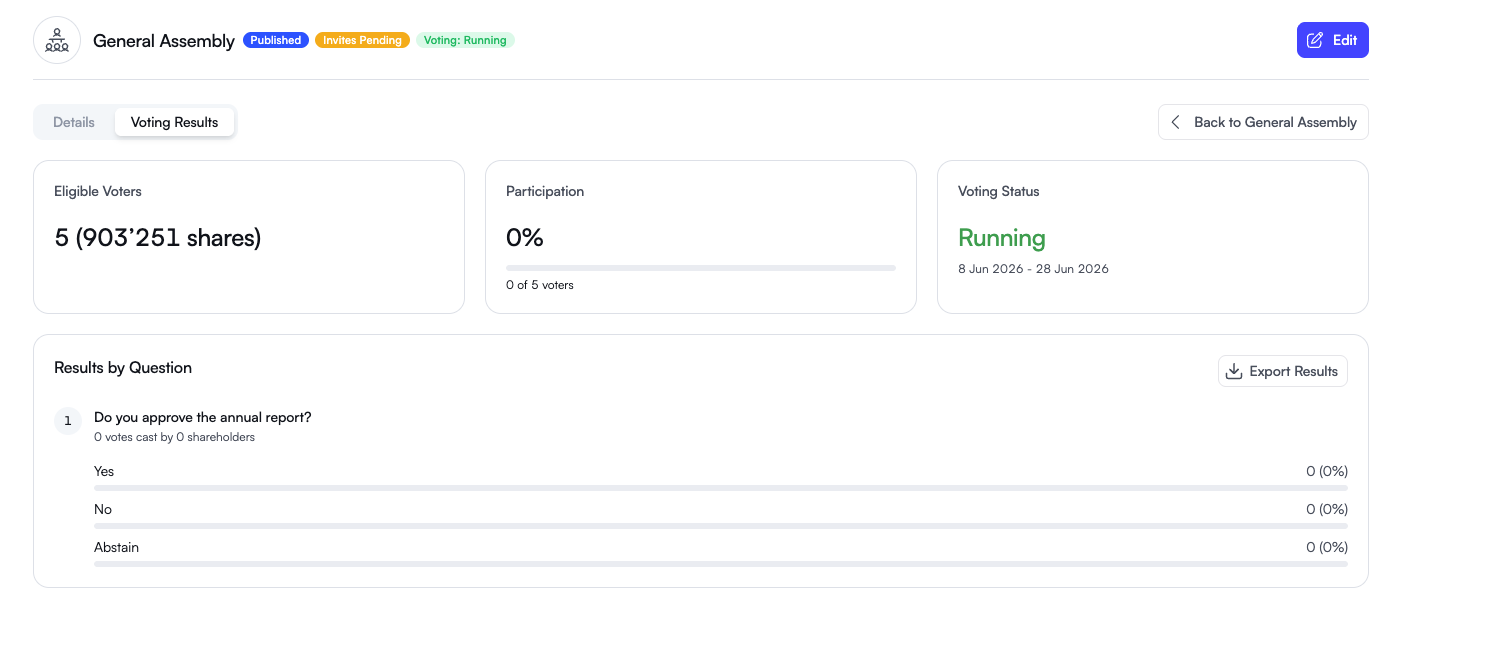
Use Export Results to download the voting summary for your records, meeting minutes, or compliance documentation.
Event Status Overview
Section titled “Event Status Overview”| Status | What it means |
|---|---|
| Draft | Event saved but not yet visible to shareholders |
| Published | Event is live on the Investor Page |
| Invites Pending | Invitations sent; shareholders notified |
| Voting: Scheduled | Voting enabled but not yet open |
| Voting: Running | Voting period is active |